
Немає скріншотів
Що можна обрати замість
Роблять те саме — можна поставити замість.

Демо Админка login: demo pass: demo http://nsdemo.waterfilter.in.ua/ns_banner/wallcatman_2.gif Вывод категорий на любой странице с возможностью задать изображение категории Отображение подкатегорий при наведении + скролл сортировка родительских категорий Лимит подкатегорий Бренды ( Производители ) Кэш категорий Кэш производителей Очистка кеша в модуле в админке Мультиязычное название модуля ..
Updated
Витрина категорий & Производители
450 грн
61 129
Вирішують ту саму задачу, але іншим способом або частково.

Модуль SP Subcategories дозволяє гнучко розширювати список підкатегорій в OpenCart: виводити будь-які існуючі категорії магазину, а також додавати довільні посилання з власними зображеннями та мультимовною підтримкою.
Submitted
SP Subcategories FREE
Free
36
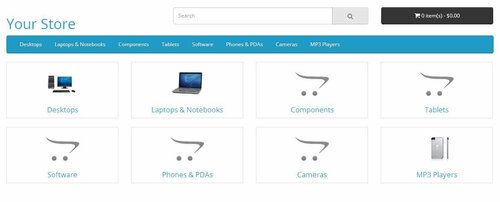
Стена категорий (вывод категорий плиткой) для Opencart 3.0.x
Распространяется as is..
Updated
Category wall | Стена категорий Opencart 3.0.x
Free
2898

Модуль для вывода категорий , их изображений, под-категорий и описания категорий в любой схеме вашего магазина!
Внимание ! Модуль предназначен только для использования в шаблоне Unishop и Opencart - Ocstore версии 2.3
В других темах и на других версиях работать не будет.
Особенности модуля :
Произвольный заголовок модуля
Возможность совсем убрать вывод заголовка модуля
Имеет три типа отображения (примеры на скринах)
Вывод изображений категорий
Вывод под-категорий
Вывод описания категорий
Разный тип отображения под-категорий (немаркиванный список, маркированный список, в один ряд .Примеры на скринах.)
Изменение порядка вывода категорий, путём перетаскивания их мышкой в настройках модуля
Кэширование данных модуля, что позволяет снизить возможную нагрузку модуля на ваш магазин, при выводе большого кол-ва категорий
итд
Установка :
В админке из раздела "Дополнения - Установка дополнений.
По фтп с помощью импорта файлов из папки upload.
Модуль бесплатный, распространяется "как есть" без какой либо тех/поддержки.
Описание и примеры работы модуля , можно посмотреть в самом модуле во вкладке "Описание".
Удачных всем продаж в ваших магазинах!..
Updated
UniShop - Стена Категорий
Free
747

Данный xml файл добавляет изображения подкатегорий верхнего горизонтального меню.
Установка:
- УСТАНОВИТЬ vqmod (ЕСЛИ НЕ УСТАНОВЛЕН ЕЩЕ)
- СКОПИРОВАТЬ ФАЙЛ xml В >> vqmod >> xml
- ПО УМАЛЧАНИЮ ШАБЛОН >> default
- РАЗМЕР КАРТИНКИ МЕНЯЕТЬСЯ В СТРОКЕ 14, ФАЙЛЕ XML $image = $this->model_tool_image->resize($child['image'], 52, 42);
- ИЗМЕНИТЬ ШАБЛОН СТРОКА 30..
Updated
IMG_MENU
Free
248
Інші рішення в тій самій області магазину.

Promo Banners in Categories and Manufacturers
Place promotional banners directly among products on category pages and manufacturer product pages. Inform customers about promotions, new arrivals, seasonal collections, and special offers while they browse your catalog.
Banners are added to the product listing without reducing the number of products displayed per page. Banner management is available directly when editing a category or manufacturer, without modifying the template code.
Two Banner Types
Product card banner — occupies a single product grid cell.
Full-width banner — spans the entire width of the product listing area.
For each banner, you can choose its position: at the beginning of the list, after a specific product, after a specific row, or at the end.
Positioning after a row automatically takes into account the number of columns displayed on the current screen.
Separate Display Settings for Desktop and Mobile Devices
Banners can be displayed on all devices, only on desktops and tablets, or only on mobile devices.
To use different images, aspect ratios, or positions, create separate banners and select the appropriate devices.
For example, you can display a wide horizontal banner on desktop screens and a compact vertical banner on smartphones. Each banner will have its own positioning and display settings.
Catalog Display Mode Support
Banners can be displayed in grid view, list view, or both modes.
This allows you to use different banners depending on the catalog layout.
Banners for Different Pagination Pages
Configure separate promotional offers for the first, second, and subsequent catalog pages.
For each banner, you can specify individual page numbers or ranges, such as 1,3-5.
Banner positions are calculated independently within each pagination page.
If a page does not contain enough products or rows to reach the specified position, the banner will not be displayed.
Multilingual Support
Add separate banners for each store language.
Images, titles / ALT text, and links are configured according to the language version currently viewed by the customer.
Additional Features
Multiple banners per category or manufacturer.
Enable or disable individual banners.
Set banner display start and end dates.
Configure sorting order for banners with the same position.
Use banners with or without links.
Optionally add the rel="nofollow" attribute to links.
Configure image dimensions.
Choose between scaling the entire image to fit the available area or filling the area by cropping the edges.
Compatibility
OpenCart 3.x
ocStore 3.x
Theme Compatibility
The base version is compatible with the standard default theme.
Other themes may require additional adaptation.
Themes that include a Price List display mode require adaptation.
Theme adaptation is a paid service.
Installation Instructions
For a new installation, execute the SQL script from promo_banners_in_categories_and_manufacturers_v_3_0_install.sql, making sure to use your store's database table prefix.
Upload promo_banners_in_categories_and_manufacturers_v_3_0_oc3.ocmod.zip via Extensions → Installer.
Refresh modifications and clear the theme cache.
Open the category or manufacturer editing page and navigate to the Promo Banners tab.
Add banners, configure their display conditions, and save your changes.
License
The license is valid for one domain and all its subdomains.
DEMO
Admin Page login/password: demo/demodemo Store Page Important!
Adaptations developed for version 2.0 are not compatible with this version!
Updated
Promo banners in categories and manufacturers
900 грн
25 99
«Картинки в списке категорий» знято з продажу
Ми підібрали схожі модулі інших розробників — їх можна придбати вже зараз.
Інші варіанти
-
Recently Browsing 0 members
- No registered users viewing this page.