


Що можна обрати замість


Product statuses PRO Speed, auto statuses, stickers, text statuses

AJAX Стикеры PRO

SP Special Categories - Категории с акционными товарами 2.x-3.x

Скрытие категорий от групп покупателей Hide Categories From Customer Groups 1.5.x-2.x-3.x

Place promotional banners directly among products on category pages and manufacturer product pages. Inform customers about promotions, new arrivals, seasonal collections, and special offers while they browse your catalog.
Banners are added to the product listing without reducing the number of products displayed per page. Banner management is available directly when editing a category or manufacturer, without modifying the template code.
Two Banner Types
Product card banner — occupies a single product grid cell.
Full-width banner — spans the entire width of the product listing area.
For each banner, you can choose its position: at the beginning of the list, after a specific product, after a specific row, or at the end.
Positioning after a row automatically takes into account the number of columns displayed on the current screen.
Separate Display Settings for Desktop and Mobile Devices
Banners can be displayed on all devices, only on desktops and tablets, or only on mobile devices.
To use different images, aspect ratios, or positions, create separate banners and select the appropriate devices.
For example, you can display a wide horizontal banner on desktop screens and a compact vertical banner on smartphones. Each banner will have its own positioning and display settings.
Catalog Display Mode Support
Banners can be displayed in grid view, list view, or both modes.
This allows you to use different banners depending on the catalog layout.
Banners for Different Pagination Pages
Configure separate promotional offers for the first, second, and subsequent catalog pages.
For each banner, you can specify individual page numbers or ranges, such as 1,3-5.
Banner positions are calculated independently within each pagination page.
If a page does not contain enough products or rows to reach the specified position, the banner will not be displayed.
Multilingual Support
Add separate banners for each store language.
Images, titles / ALT text, and links are configured according to the language version currently viewed by the customer.
Additional Features
Multiple banners per category or manufacturer.
Enable or disable individual banners.
Set banner display start and end dates.
Configure sorting order for banners with the same position.
Use banners with or without links.
Optionally add the rel="nofollow" attribute to links.
Configure image dimensions.
Choose between scaling the entire image to fit the available area or filling the area by cropping the edges.
Compatibility
OpenCart 3.x
ocStore 3.x
Theme Compatibility
The base version is compatible with the standard default theme.
Other themes may require additional adaptation.
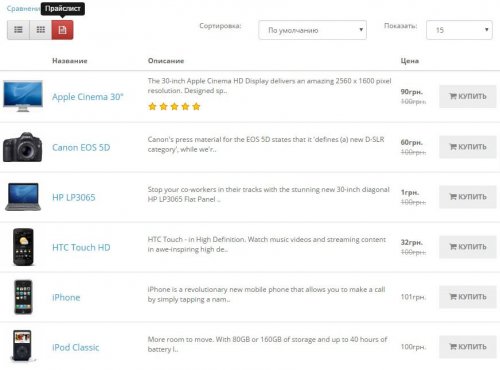
Themes that include a Price List display mode require adaptation.
Theme adaptation is a paid service.
Installation Instructions
For a new installation, execute the SQL script from promo_banners_in_categories_and_manufacturers_v_3_0_install.sql, making sure to use your store's database table prefix.
Upload promo_banners_in_categories_and_manufacturers_v_3_0_oc3.ocmod.zip via Extensions → Installer.
Refresh modifications and clear the theme cache.
Open the category or manufacturer editing page and navigate to the Promo Banners tab.
Add banners, configure their display conditions, and save your changes.
License
The license is valid for one domain and all its subdomains.
DEMO
Admin Page login/password: demo/demodemo Store Page Important!
Adaptations developed for version 2.0 are not compatible with this version!
Promo banners in categories and manufacturers



User Feedback
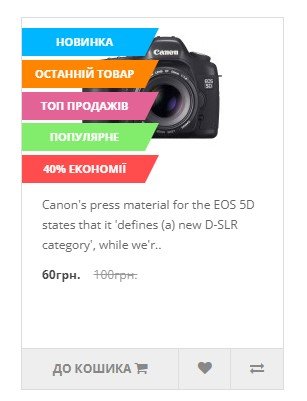
This extension automatically adds Stickers (Bestseller, Sales, New, Last, Most Viewed and Sold) for products in the product in categories, manufacturers, promotions and search.
Multilanguage store support
Also recommended in the module, the top sales and special offers.
Do not change store files.
Automatically adds Sticker "New" (The number of days set in admin)
Automatically adds sticker "Bestseller" (limit of bestseller products you can set in admin)
Automatically adds Sticker "SALE" for discounted products (ability to display in percentage or text)
Automatically adds sticker "Sold" for goods Stocked. (Enable this sticker you can in the admin)
Automatically adds sticker "Last" . (Enable this sticker you can in the admin)
Automatically adds sticker "Most Viewed" . (Enable this sticker and set quantity of items you can in the admin)
In module settings you can choose custom text & background color for each bage.
Language: en/uk.
Tested on Opencart 2.0.X, Opencart 2.1.X , Ocstore 2.0.X, Ocstore 2.1.X
Front store demo
Demo settings
Login: demo
Pass: demo
Installation:
The menu item "Modules" -> "Install extensions" set "AutoLabels_v.3.3.1.ocmod.zip" file.
Reload Cache modifier "Modules" -> "Modifiers" Clicking on the "Update" button
The menu item "Modules" -> "Modules" install and configure "Settings automatic labels"
All questions send e
View other add-ons by the author
Характеристики
-
 1


-
Recently Browsing 0 members
- No registered users viewing this page.