



Що можна обрати замість

interkassa oc_1.5.x

Interkassa oc_2.0.x-2.1.x-2.2.x

Wayforpay API оплата для Opencart 2.1, 2.3, 3.x

Liqpay API Opencart - онлайн оплата для Opencart 3 и 2.x, OcStore 3 и 2.х.
SP Multi-Bank-Details - Auto Selection of Bank Payment Details, Multi-Bank-Details

BankApp Payment Suite is a set of payment extensions for OpenCart and ocStore that allows merchants to accept bank transfers using payment details: the full order amount, a fixed or percentage-based prepayment, and the remaining balance after the prepayment.
After placing an order, the customer sees the prepared payment details, amount, and payment purpose. They can copy the information, open the payment in a banking app using a link, or scan a QR code. The extension also generates PDF invoices, adds invoice links to the order, and allows the administrator to email them to the customer.
What Is Included
Full Payment by Bank Details with QR — a separate payment method for the entire order amount Prepayment by Bank Details with QR — a separate payment method for a fixed amount or a percentage of the order total Balance Payment — a separate PDF invoice and email template for final payment after a prepayment mPDF Runtime — a separate library package for generating PDF files. It is installed once and is not duplicated in payment extension updates Main Features
Two independent payment methods with separate settings Full order payment by bank transfer Fixed-amount prepayment Percentage-based prepayment Automatic calculation of the prepayment and remaining balance QR code containing the payment details, amount, and payment purpose Universal link for opening the payment in a banking app Responsive payment block on the order success page Copying individual payment details or all payment information PDF invoice generation using mPDF Separate invoice templates for full payment, prepayment, and balance payment QR code embedded directly in the PDF invoice Invoice links in the administration panel and the customer account Sending PDF invoices to customers from the administration panel Signed PDF links that customers can access without signing in Editable HTML templates for PDF invoices and emails using Summernote Multilingual payment purposes, notes, invoices, and emails Ukrainian, Russian, and English localization Full Order Payment
The Full Payment by Bank Details with QR method requests payment of the entire order amount. After confirming the order, the customer receives:
the payment recipient’s name tax ID or EDRPOU code IBAN account number the amount due the payment purpose containing the order number a QR code and a button for opening the payment a link for downloading the PDF invoice Fixed-Amount or Percentage-Based Prepayment
The prepayment extension allows you to select one of two calculation methods:
Fixed amount — for example, UAH 500 regardless of the total order value Percentage of the order — for example, 10%, 20%, or 50% of the full amount If the fixed prepayment exceeds the order amount, the requested payment will not exceed the full order amount. The order success page and invoice display the full amount, prepayment, and remaining balance.
Balance Payment Invoice
If the customer decides to pay the remaining amount after making a prepayment, the administrator can generate a separate invoice for the outstanding balance.
Separate payment purpose for the remaining balance Separate HTML template for the PDF invoice Separate email subject and HTML email template QR code containing the correct remaining balance Display of the full amount, prepayment, and outstanding balance Payment Block on the Order Success Page
The payment block is displayed only for the payment method selected by the customer during checkout. Payment details and the QR code are not displayed for other payment methods.
The block is responsive for desktop computers and mobile devices and includes:
the amount due all bank details copy buttons a centered QR code a button for opening the payment in a banking app a link to the PDF invoice an additional note for the customer contact phone numbers and email addresses QR Code and Banking Applications
The extension generates a payment QR code containing the recipient’s details, IBAN, amount, and payment purpose. The customer can scan it directly using a banking application on a mobile device or computer.
After opening the payment, the user only needs to verify the completed payment details and confirm the transfer in their bank.
PDF Invoices
PDF files are generated by the mPDF library using an HTML template configured in the extension settings.
Separate templates for full payment, prepayment, and balance payment Editing through the built-in Summernote editor Automatic insertion of store, order, customer, payment, and delivery information Store logo support Contact phone numbers and email addresses QR code containing the relevant payment amount Correct Cyrillic character rendering A ready-to-use PDF for downloading, printing, or sending to the customer Invoices in the Administration Panel
On the order information page, the administrator can see the available invoice types when the corresponding extension is enabled:
full payment invoice prepayment invoice balance payment invoice The links are available regardless of the payment method originally selected for the order. This allows the administrator to generate the required invoice if the customer changes their preferred payment method.
Sending an Invoice to the Customer
The administrator can send the required invoice directly from the order page.
Invoice type selection before sending The customer’s email address is automatically taken from the order The email address can be changed before sending Orders from registered customers and guests are supported The PDF invoice is attached to the email A signed invoice link can also be included in the email Invoices in the Customer Account
A registered customer can open the PDF invoice from their order information page. For orders with a prepayment, an invoice for the remaining balance is also available.
Email Templates
A separate subject and HTML email content can be configured for each store language. The extension supports different templates for:
full payment prepayment balance payment The email can include order, customer, and store information, payment details, the payment amount, contact details, and a button linking to the PDF invoice.
Template Variables
A list of available variables is displayed below the editors in the settings. Clicking a variable copies it to the clipboard.
Multilingual Support
The following items can be configured separately for each installed store language:
payment purpose note displayed on the order success page PDF invoice HTML template email subject email HTML template payment purpose, PDF invoice, and email for balance payment The interface and default extension texts are localized in Ukrainian, Russian, and English.
Extension Settings
The settings are divided into convenient tabs:
General Settings — recipient, tax ID/EDRPOU, IBAN, contact details, payment purpose, status, geo zone, and sort order PDF Invoice — multilingual HTML invoice templates Invoice Email — multilingual email subjects and HTML email templates For prepayments, you can additionally configure the calculation method, fixed amount or percentage, and separate templates for the balance payment.
OCMOD Integration
Integration with the order success page, the order information page in the administration panel, and the customer account is implemented through OCMOD. The extension does not require manual editing of OpenCart system files.
Compatibility
OpenCart 3.x ocStore 3.x PHP 7.3–8.3 Ukrainian, Russian, and English localizations System Requirements
OpenCart or ocStore 3.x installed PHP 7.3–8.3 A separate mPDF Runtime package installed for PDF invoice generation OpenCart email settings configured for sending invoices Server access to the external bank.gov.ua HTTPS link for opening payments Standard PHP extensions required by mPDF Important Limitations
The extension works as a bank transfer payment method and is not an online acquiring or card-processing service The QR code and payment link transfer the payment details, amount, and payment purpose, but do not debit funds without confirmation from the customer in their banking application Automatic bank callbacks and automatic payment verification are not provided The administrator must manually change the order status after the funds are received The ability to open and correctly populate a payment depends on whether the specific banking application supports the relevant standard The store email system must be configured correctly to send messages Installation
Upload the bankapp_mpdf_v_1_0_oc3.ocmod.zip archive through Extensions → Installer Upload the bankapp_payment_v_1_0_oc3.ocmod.zip archive Go to Extensions → Modifications and refresh the modification cache Go to Extensions → Extensions Select Payments as the extension type Install the required methods: full payment and/or prepayment Enter the recipient, tax ID/EDRPOU, IBAN, contact details, and payment purpose For prepayment, select a fixed amount or percentage Configure the PDF and email HTML templates when necessary Select the order status, geo zone, and sort order, and enable the extensions Save the settings and place a test order to verify the configuration DEMO
Admin Page login/password: demo/demodemo Store Page License
One license covers one domain and all of its subdomains.
BankApp Payment Suite

User Feedback
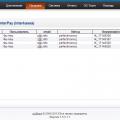
interPay
Модуль для оплаты онлайн, только после того как менеджер свяжется с клиентом и убедиться в наличии товара или каких то других факторах, только после этого у клиента появиться возможность оплаты онлайн из личного кабинета. Работает с разными валютами.
Для перехода на оплату сразу после подверждения заказа покупателем воспользуйтесь модулем Interkassa ++
Также есть расширение для работы двух модулей вместе.
Работает с новым API Interkassa 2.0
Порядок работы.
Клиент создает заказ, выбирает метод оплаты interpay. Создается заказ со статусом указанном в настройках модуля. Менеджер магазина видит заказ и присваивает статус заказу(например Ожидает оплаты, настраивается в настройках модуля), после этого у клиента появляется кнопка в личном кабинете, в истории заказов оплатить онлайн. Если пользователь совершил заказ без регистрации, то после изменения статуса заказа и установки флажка уведомить покупателя, клиенту отправляется письмо с информацией об изменении заказа и ссылкой на оплату онлайн. После оплаты создается запись о совершенном платеже в админ панели и статус заказа меняется на другой(например Оплата принята, задается в настройках модуля).
Лицензия действительна на один домен
Видео работы модуля
Протестировано
Opencart 1.5.6
Opencart 1.5.5.1
OcStore 1.5.5.1.2
OcStore 1.5.5.1
OcStore 1.5.4.1
OcStore 1.5.3.1
Maxystore 1.5.5.1
Если у Вас другая версия, пишите, протестирую.
Демонстрация
Админка
логин demo
пароль demo
При оплате есть тестовая платежная система
Также прекрасно работает с модулем Simple - упрощенная регистрация и заказ.
на данный момент interkassa поддерживает следующие варианты оплаты
Электронные платежи
Visa, Mastercard
WebMoney
Visa, Mastercard, Maestro(PAYU)
Яндекс.Деньги
WebMoney Credits
Privat24
НСМЕП
Единый кошелек
Telemoney
Paxum
LiqPay
Unikarta
PerfectMoney
WebCreds
Qiwi Кошелек - W1
Мобильный платеж «Мегафон»
Мобильный платеж «Билайн»
Мобильный платеж «МТС»
Альфа-Клик
Qiwi Кошелек
Денежные переводы
Банки Украины
Сбербанк РФ
Банки России
Почта России
Денежные переводы «ЛИДЕР»
Денежные переводы «Anelik»
Денежные переводы «Юнистрим»
Денежные переводы «CONTACT»
Салоны связи и гипермаркеты электроники
Терминалы России
Терминалы Украины
Терминалы Украины
Терминалы Приватбанка
Настройка нового API 2.0
Зарегистрироваться, создать кассу, активировать кассу
В настройках кассы вкладка интерфейс
URL успешной оплаты - из настроек модуля Success URL
URL неуспешной оплаты - Fail URL
URL ожидания проведения платежа - Waiting URL
URL взаимодействия - Status URL
Установить переключатель везде в метод POST
в настройках кассы вкладка безопасность скопировать секретный ключ
В настройках модуля ввести свой индетификатор магазина и секретный ключ(можно использовать тестовый ключ, тогда можно использовать тестовую платежную систему)
а также выбрать статусы.
Установка и порядок работы
Для работы необходим vqmod
1. Скопировать файлы из папки Upload в корень сайта.
2. Зайти в админ панель - дополнения - оплата - и установить interPay (interkassa)
3. Проверить доступ к модулю. Система - пользователи - группы пользователей - поставить галочки напротив payment/interpay
4. Зайти в настройки модуля (ссылка Изменить)
5. Ввести настройки. Включить модуль(статус включено)
6. В заказе клиента поставить статус который вы выбрали в настройках модуля(Статус заказа для включения кнопки "оплатить онлайн"). Если пользователь совершил заказ без регистрации то установите галочку "Уведомить покупателя". Тогда он получит письмо с ссылкой на оплату.
7. Теперь у клиента в личном кабинете в истории заказов на заказе со статусом появилась кнопка "Оплатить онлайн". Если пользователь не регистрировался при заказе то только в письме он увидит ссылку.
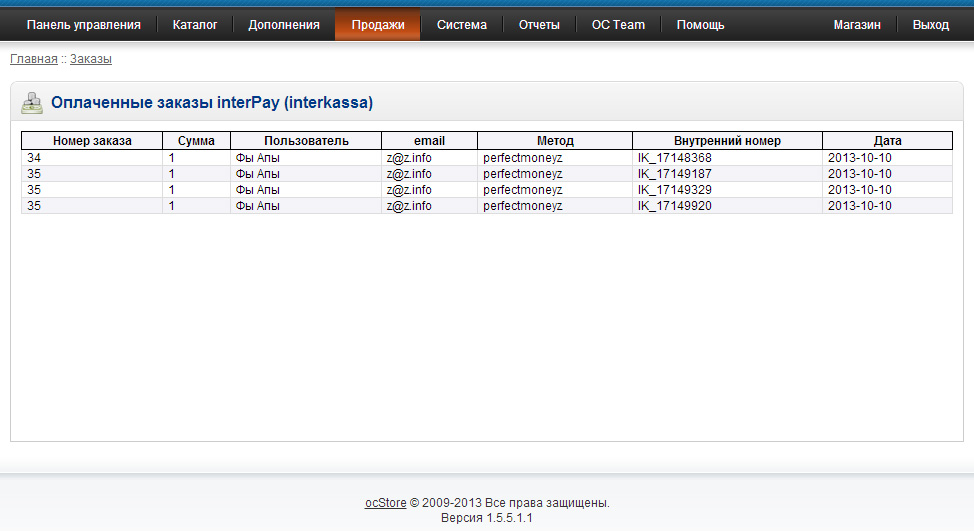
8. После оплаты в меню Продажи->interPay вы увидите информацию о полученном платеже.
Старое API 1.0
Для подключения магазина нужно зарегистрироваться по ссылке
В своем личном кабинете на interkassa.ru
Задать "Метод передачи данных" везде POST
Из настроек модуля скопировать Success URL: Fail URL: Status URL: и вставить их в линый кабинет в interkassa.ru
Если у вас установлен модуль Отложенная оплата. Банковская квитанция при копировании файлов покажет что файл otlog_opl.xml существует можете заменить или не заменять, файлы идентичны.
Характеристики
-
Recently Browsing 0 members
- No registered users viewing this page.