Search photo in Google, optimization and AI-creation of backgrounds for product photos V1.4


User Feedback

ImageForge AI — an intelligent media center for OpenCart product photos
Find high-quality images, create professional advertising creatives, generate realistic scenes, remove backgrounds, and optimize photos — without leaving the admin panel.
OpenAI Image 2 · BRIA AI · Google Images / Serper.dev · Photo Lab · WebP Optimizer
Manual and bulk scripts · Product gallery · Background task management · Presets · API cost control

One module — a full cycle of working with images
ImageForge AI unifies functions that would normally require multiple apps, services, and tabs to perform. From finding a missing photo to creating a finished promotional card, everything is organized around a specific product, its features, and images.
- Search and import. Search for photos via Google Images and Serper.dev, view sources, and upload to the OpenCart gallery .
- AI-based advertising creatives. OpenAI generates compositions based on a real product photo, its description, and characteristics.
- Realistic photo scenes. OpenAI Scene Director and BRIA create studio, lifestyle, and catalog scenarios.
- Photo Lab · Image 2. Background removal, AI enhancement, light, sharpness, color and effects correction.
- File optimization. WebP, JPEG, PNG, variable sizes, compression quality, and cropping modes.
- Mass automation. Processing of selected products, queues, pause, resume and control of results.

Google Images: Find a photo without manually copying it
When a product lacks quality artwork, ImageForge AI helps find alternatives via Google Images using the Serper.dev integration. Images can be viewed, checked for file characteristics, and added to the product from the module.

- Quick search. Start searching for a product with a prepared query without leaving the media center.
- Advanced search. Refine query, domain, type, format, size, orientation, and aspect ratio.
- Useful information: Results show format, resolution, weight, and links to the source photo and page.
- Store storage. Add the found image as the main or secondary image; repeated searches are accelerated by the local cache.
About image sources. Search and technical ability to upload are not a substitute for checking the rights to use a specific photo. For your product catalog, use your own, authorized, or licensed materials.
Product gallery where all tools are available
Each main and secondary photo can be viewed along with its size, resolution, and file path. Search, optimization, ad creative, AI scene, and Photo Lab processing are launched from the gallery.
- Replacing the main photo with transferring the previous image to additional ones.
- Adding new photos to the gallery without manual work with the file manager.
- Unlinking unnecessary photos from the product without automatically physically deleting the file from the server.
- Go to edit a product or its page in the storefront.
- Return to the desired product while preserving context after closing modal windows.

Advertising creatives based on real product data
You don't need to create a complete advertising layout yourself. The module analyzes the name, manufacturer, model, categories, attributes, description, current price and promotion, forms an advertising script and creates a visual result based on the selected original photo.

Three generation modes
- 01 · Complete AI design. OpenAI creates a complete ad: product, composition, background, text elements, benefits, and CTAs.
- 02 · Accurate product + local text. AI creates the composition; local layer overlays text where more precise control of the inscriptions is needed (Imagick recommended).
- 03 · White background + features. A full-fledged ad layout with a clean white background, headline, benefits, and information elements enabled.
What can be configured
- Labels: product name, title, subtitle, advertising badge, quantity and texts of benefits, CTA.
- Price: show or hide the current and old price; in bulk mode, set a percentage for the old price on the ad layout.
- Creative language: choose the language of the advertising text regardless of the image.
- Visual style: technological, premium, neon, minimalist, lifestyle, light for marketplace, pastel, eco, black & gold, industrial, holographic, editorial, etc.
- Composition: product on the left, right, center, top or automatic placement.
- Scene: studio, home interior, nature, premium showcase, industrial space, futuristic location.
- Decor: catwalks, glow, reflections, particles, bokeh, light lines, geometry and their saturation.
- Final parameters: generation model, quality, canvas format, result file, custom instructions.
Focus on accuracy. The module transfers the original from the catalog, not a small preview image. Only confirmed product data is included in the script; service identifiers should not be given as advantages. It is advisable to check the final AI layout for the correctness of the text, price, and small details.


Promotional images for dozens of products under one profile
ImageForge AI supports sequential mass generation for selected products. Each product receives an individually generated script based on its own data. There is no need to open each product separately.

- Up to 100 products in a package. Selections with checkboxes are saved between list pages.
- Flexible photo source. Main or additional photo #1–9; skip or fallback if unavailable.
- Four ways to use it: Replace the main photo, source photo, selected additional photo, or add a new photo.
- Managed queue. Progress, statuses, pause after current item, continuation and cancellation.
- Recovery after reboot. The current state of the package is stored in the database, there is error handling and restart.
- Personal profiles. Bulk mode settings and named presets for reuse.

Expected behavior: Cancellation stops further automatic application, but cannot revoke a paid API request that has already been accepted. Generation parameters and costs depend on the connected provider.
OpenAI Scene Director: photos in a real environment
The module helps you choose the right environment: where the product is used, what light, surface, angle, and composition are needed. You can choose a ready-made scene or get options from OpenAI, and then generate a photo scene with a real photo of the product.
- Product understanding: AI determines the type, purpose, and natural place of use from the product name and context.
- Ready-made scenes. Studio, workshop, kitchen, bathroom, office, garden, car, warehouse and other templates.
- Storage management. Settings for storing the logo, shape, color, materials, and prohibiting unnecessary objects and text.
- OpenAI Vision and options. Analysis of the selected photo, some ideas, prompt rework, and scene history if needed.
- Image quality 2. For photo scenes, LOW (default), MEDIUM, HIGH, AUTO are available.
- Custom templates. Save and link scenes to a product, category, manufacturer, or entire catalog.


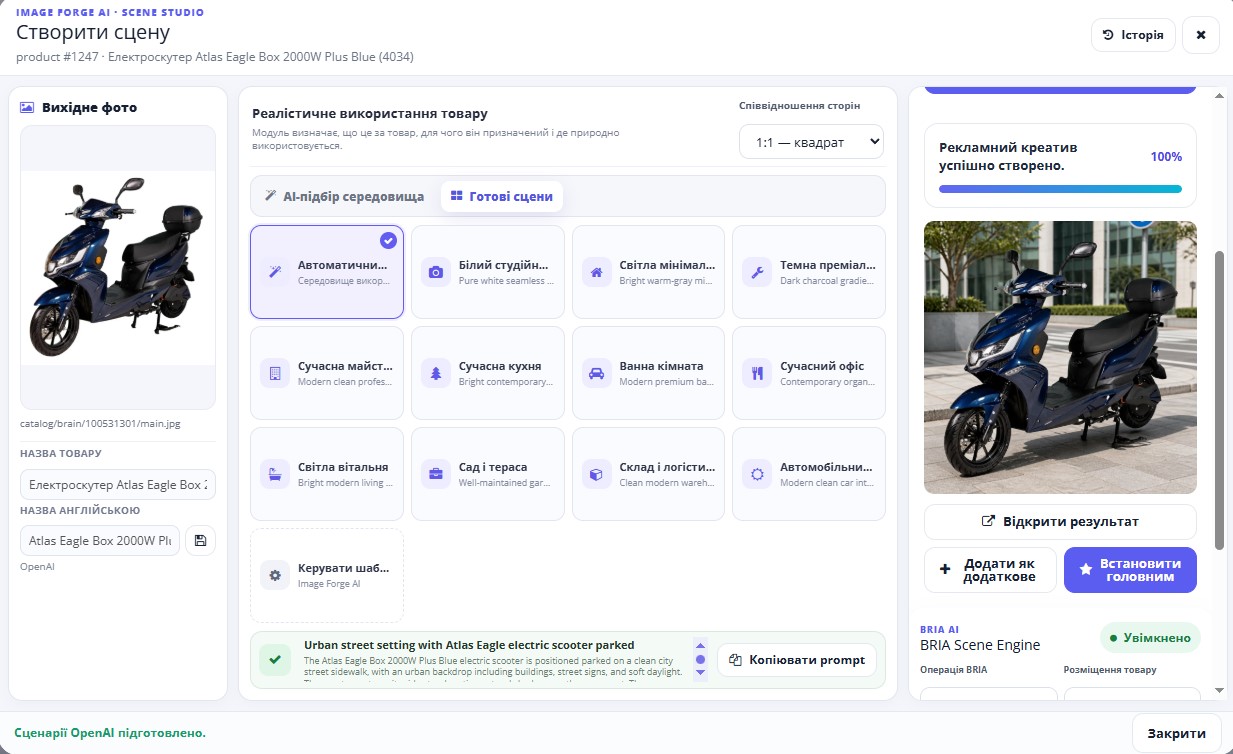
BRIA: lifestyle, catalog packshot and product cutting
BRIA AI works as a standalone tool for creating and processing product photo scenes. In Scene Studio, you can use a prepared prompt, select the operation, product placement, and the desired aspect ratio.

- Lifestyle: placing the product in a contextual scene according to the description.
- Packshot: a catalog photo with a selected background color.
- Cutout: separating the subject from the background.
- Control: saving proportions, position, execution mode, task status and loading the result.
- Application: independent buttons for adding to the gallery or setting as the main photo.
- Comparison: Before/After view and task history.
Two AI tools to choose from. OpenAI Scene Director and BRIA do not need to be enabled at the same time: the studio displays available connected providers. Photo Lab on Image 2 also works without the ad studio enabled if OpenAI is active.
Photo Lab · Image 2: Background Removal and AI Enhancement
A separate studio for processing selected photos that does not require creating a complete advertising layout. Suitable when you need to prepare a neat catalog frame, improve an old image, or bring a series of photos to a single style.

Three processing modes
- Remove background. Convert photo to pure white, light gray, or transparent PNG (depending on API support).
- Enhance photos. Improve lighting, sharpness, detail, contrast, colors, and other parameters.
- Remove background + enhance. Combine the preparation of a new background with selected enhancements in one task.
Effects settings
- Details: sharpness, noise reduction, detail.
- Light and color: lighting, white balance, contrast, color correction.
- Volume: soft shadow and highlights.
- Intensity: minimal, balanced or expressive.
- Dimensions: 1024×1024, 1024×1280, 1280×1024, 1152×1536, 1536×1152.
- Quality: LOW (default), MEDIUM, or HIGH.
- Manual and bulk mode: processing a single photo or selected products through a managed queue.


Protect originals. Results are saved as separate files, originals are not erased. In bulk mode, a new photo is added by default, and replacing an existing one requires a separate selection. PNG transparency is checked where possible; API support for transparent Image 2 backgrounds may vary between accounts.
Smaller file sizes—without losing control over your images
The built-in optimizer prepares new file versions for products, categories, and manufacturers. You can optimize selected images individually or in batches, setting parameters according to the catalog requirements.

- Formats: WebP, JPEG, PNG.
- Dimensions: arbitrary width and height and ready-made presets 600×600, 800×800, 1000×1000, 1200×1200, 1200×900.
- Scaling modes: fit proportionally, add margins, fill with cropping, or just compress.
- Quality: manual selection of compression level, possibility of enlargement and adjustment of field color.
- Result: comparison of original and new size, space saving.
- Security: An optimized copy is applied to the object, the original file is physically stored on the server.

For large stores: quick search, filters, mass actions
ImageForge AI has separate sections for products, categories, and manufacturers. Search and filters help you navigate to the items you need, including products that need new photos.
- Global AJAX search by product name, model, SKU or ID; for categories - by name or ID.
- Product filters: category, manufacturer, price, status, availability and the presence of a photo.
- Convenient pagination with a choice of the number of cards per page.
- Large tree categories: initial loading of short list and full list upon request.
- Bulk operations: selected objects, saving set between pages for AI packages, and resetting selection.
- Visual interface: modal studios, progress indicators, product highlighting after editing.
Repeatable results, understandable costs and settings
Save and reuse successful settings, track process status, and manage access to AI providers.
- Named presets. Separate profiles for manual and mass generation: apply, edit, update or delete.
- API statistics. Task limits, history, and estimated cost; for OpenAI, tokens, generation time, and costs.
- API key protection. OpenAI, BRIA, and other integration keys are stored in an encrypted vault.
- Language support. Administrative interface in Ukrainian, English and Russian.
- Local license verification. After activation, RSA signature verification is performed locally; normal operation does not initiate periodic verify requests.
- History and statuses. Saved ad creatives, prompts, BRIA tasks, and server queue statuses.
How ImageForge AI differs from a regular image generator
The module's strength is not a single generation button, but the connection of AI tools with real OpenCart products . The photo does not remain a separate file on the computer: after checking, the result can be immediately applied to the desired place in the gallery.
- Real product context. The name, model, features, description, and price are used to build a relevant scenario.
- Working with your original. OpenAI and BRIA receive a selected product photo, not an image of a fictional item.
- Scripting freedom. Search, advertising, photorealistic scene, background removal, and optimization are all available in a single workflow.
- Not just single operations. Batch processing, queue management, templates, error control, and process recovery.
- Stay in control. You can see the result first, then assign it as the main photo or add it to the gallery.
- Preparation for sales channels. It is convenient to take clean catalog photos and design advertising materials; compliance with site requirements is checked separately.
Three practical scenarios for an online store
Scenario 1 · The product has no photo
Find a product → open Google Images → check the source and quality → add a main photo → optimize to WebP if necessary.
Scenario 2 · There is a regular photo, advertising is needed
Open the gallery → choose the original → prepare the preferences → choose the style, composition and CTA → create the creative → check the result → add to the gallery.
Scenario 3 · Need to update a large group of photos
Filter products → mark the ones you need → choose mass advertising mode or Photo Lab → configure the photo source and application method → track the queue → check the results.
Compatibility and connectivity
- Platform: OpenCart 3.x; this build is specifically for OpenCart 3
- PHP: 7.4+ within the compatibility of your OpenCart installation and installed extensions
- Database: MySQL/MariaDB (InnoDB, utf8mb4)
- PHP extensions: cURL, JSON, OpenSSL, GD; Imagick recommended for accurate local text
- Providers: Own API keys to the required services: OpenAI, BRIA, Serper.dev
- Installation: OCMOD → update modifiers → clear cache → set keys and activate
- Licensing: Key activation; further local RSA verification. For encoded commercial build, appropriate ionCube Loader is required
Important about APIs and final results. External APIs are paid according to the provider's tariffs and may have their own limits and model availability. The accuracy of AI generation, text, and transparent PNG should be checked before publication. During the audit of this particular archive, no real paid requests to OpenAI/BRIA were executed.
Questions that arise before installation
Do you need OpenAI, BRIA, and Serper.dev all at once? No. Providers have separate toggles; only enable the services whose features you plan to use. Photo Lab requires OpenAI to be active.
Does the original photo change during processing? The new files are saved separately. In the application, you choose whether to add the result to the gallery or make it the main one; the original is not physically deleted.
Can I generate for many products at once? Yes. There is mass AI advertising and mass Photo Lab processing through a queue; up to 100 products in a batch are supported for ad generation.
Is it possible to create a regular photo on a white background? Yes. There is Photo Lab with a white or light gray background, BRIA Packshot and a separate advertising mode "White background + characteristics".
Is there cost control? The module shows estimated costs and tokens, supports transaction limits. The actual write-off is determined by the provider's account.
Can the module itself guarantee marketplace rules? No. The tools help prepare the right style and size, but the requirements of a specific platform, content rights, and accuracy of information should be checked separately.

Turn product photos into high-quality visual content
From finding the right image to creating creative and managed bulk processing, all the important tools are collected in a familiar administrative panel.
- Demonstration
- L:demo
- P:demo
- instructions >>> shopx.com.ua
Характеристики


-
Recently Browsing 0 members
- No registered users viewing this page.